Sale Return (IMEI Item)
Home / Documentation /
⚙️ Getting Started
🏪 Outlet
⚙️ Settings
🏧 Working With Counter
💰 Working Denomination
🛒 Make a Test Sale
👥 Employee Management
📅 Attendance
📋 Working with Tax
🏦 Account
📦 Working (General Item)
📦 Working (Variation Item)
📱 Working (IMEI Item)
🏷️ Working (Serial Item)
💊 Working (Medicine Item)
💳 Working (Installment Item)
🔧 Working (Service Item)
📊 Stock (General Item)
📊 Stock (Variation Item)
📊 Stock (IMEI Item)
📊 Stock (Serial Item)
📊 Stock (Medicine Item)
📊 Stock (Installment Item)
📥 Purchase (General Item)
📥 Purchase (Variation Item)
📥 Purchase (IMEI Item)
📥 Purchase (Serial Item)
📥 Purchase (Medicine Item)
📥 Purchase (Installment Item)
🏷️ Barcode & Label
🖨️ Working with Printer
🛒 Sale (General Item)
🛒 Sale (Variation Item)
🛒 Sale (IMEI Item)
🛒 Sale (Serial Item)
🛒 Sale (Medicine Item)
🛒 Sale (Installment Item)
🔧 Sale (Service Item)
🌐 Multivendor e-Commerce
📧 Working with Email
💬 Working with SMS
💳 Payment Gateway Setting
💬 Working with WhatsApp
👤 Working with Customer
🏢 Working with Supplier
📤 Purchase Return (General Item)
📤 Purchase Return (Variation Item)
📤 Purchase Return (IMEI Item)
📤 Purchase Return (Serial Item)
📤 Purchase Return (Medicine Item)
📤 Purchase Return (Installment Item)
🔄 Sale Return (General Item)
🔄 Sale Return (Variation Item)
🔄 Sale Return (IMEI Item)
🔄 Sale Return (Serial Item)
🔄 Sale Return (Medicine Item)
🔄 Sale Return (Installment Item)
📊 Dashboard
🎁 Promotion & Coupon
🏆 Loyalty
💳 Installment Sale
🔧 Warranty/Servicing
📈 Income
📉 Expense
💰 Salary/Payroll
📋 Quotation
🔄 Transfer (General Item)
🔄 Transfer (Variation Item)
🔄 Transfer (IMEI Item)
🔄 Transfer (Serial Item)
🔄 Transfer (Medicine Item)
🔄 Transfer (Installment Item)
❌ Damage (General Item)
❌ Damage (Variation Item)
❌ Damage (IMEI Item)
❌ Damage (Serial Item)
❌ Damage (Medicine Item)
❌ Damage (Installment Item)
🏢 Fixed Asset
📊 Report
🔄 Update Software
❌ Uninstall License
A sale return occurs when a customer returns items they have previously purchased from a seller. This can happen for reasons such as dissatisfaction with the product, receiving damaged products, or changing one’s mind about the purchase. The seller then typically refunds the customer’s money or offers store credit for the returned items. Sale returns often involve updating stock records and may impact the seller’s financial statements.
Add Sale Return
To add a sale return for an IMEI product, you need to use the Sale Return menu.
First, expand the “Sale Return” menu from the left sidebar.
Then, select the “Add Sale Return” option.
After that, you can proceed with entering the required details.
Expand the Sale Return menu from the left sidebar
Click on the Add Sale Return option
Enter the necessary return details
Save the record to complete the process
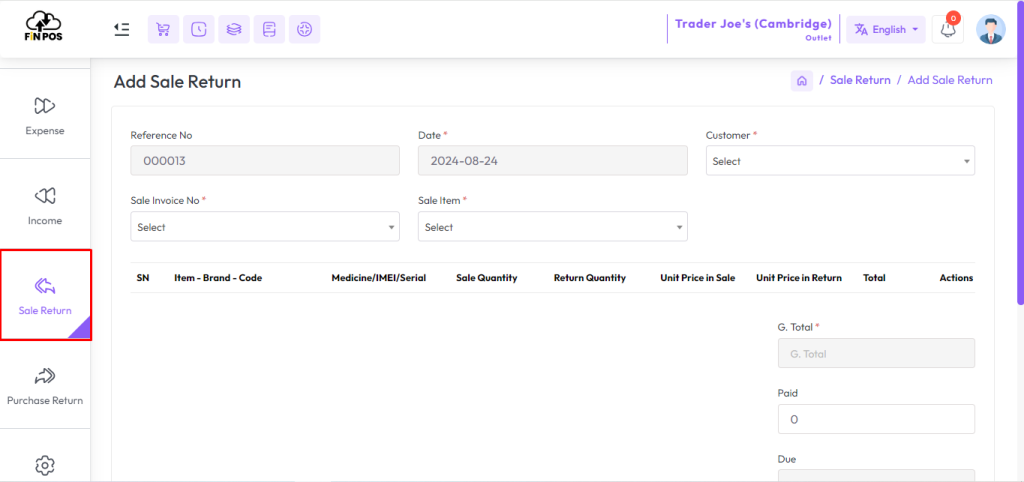
Select customer first when making a sale return.
No data will be displayed in the sales invoice and item fields unless the customer is selected. Because those fields are generated based on the customer.

After that, you need to find the related invoice for the sale return.
Search the invoice using the invoice number in the system.
Once found, select the invoice from the list.
This ensures the return is linked with the correct sale record.
Search the invoice by invoice number
Locate the invoice in the list
Select the correct invoice
Confirm to proceed with the return
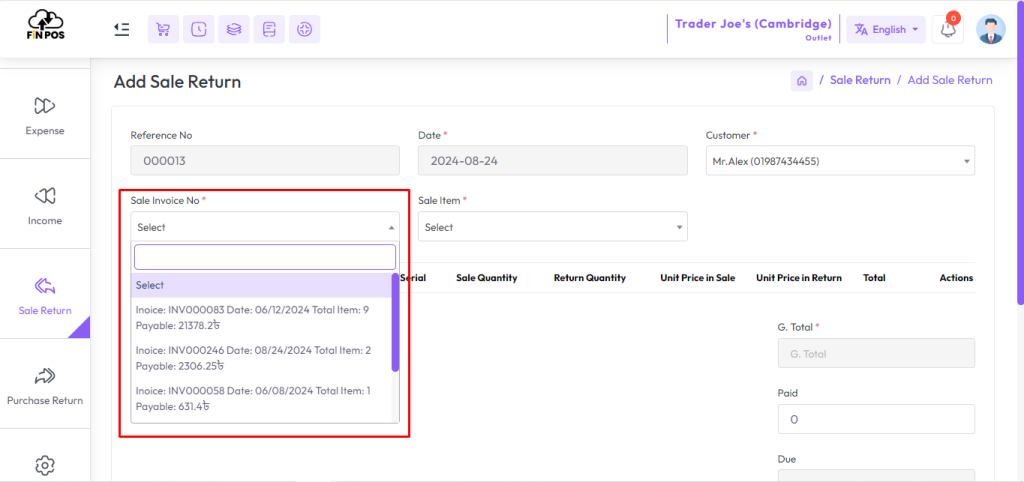
After selecting the invoice, the invoice items will be generated in the item field.
After that select the items you want to return one by one.
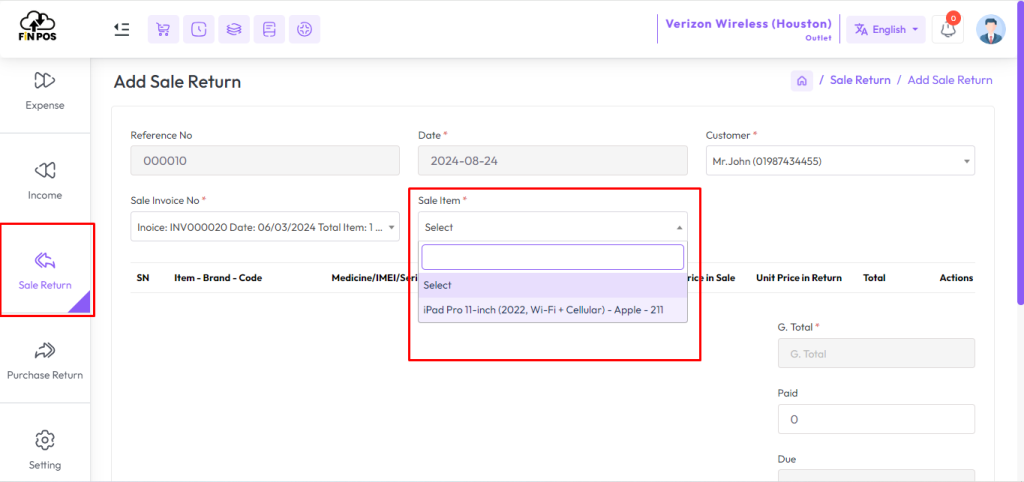
Next, you need to provide the details of the items being returned.
Enter the return quantity carefully in the given field.
Also, type the return unit price in the Unit Price in Return field.
These values will calculate the total return amount automatically.
Enter the Return Quantity
Enter the Return Unit Price
Verify both values are correct
System will calculate the return total

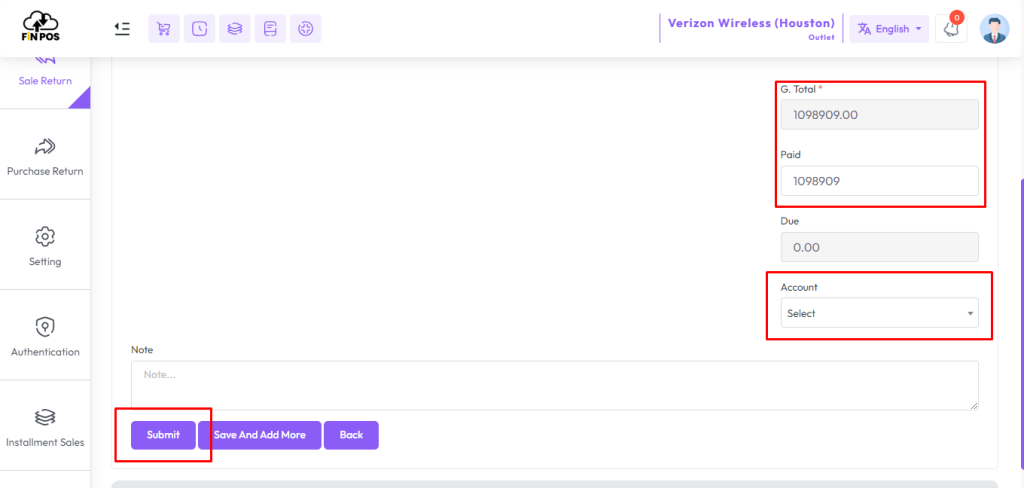
Finally, you need to complete the payment details for the sale return.
Enter the paid amount in the Paid field.
Select the appropriate payment method from the Account field.
Click the Submit button to save and finalize the return.
Enter the Paid Amount
Select a Payment Method from the Account field
Review the details before saving
Click Submit to complete the process